NewFor everyone
Circle the problem on your screen when you send feedback
Pointing at a problem is quicker than describing where it is. And you see exactly what goes with your words before you send them.
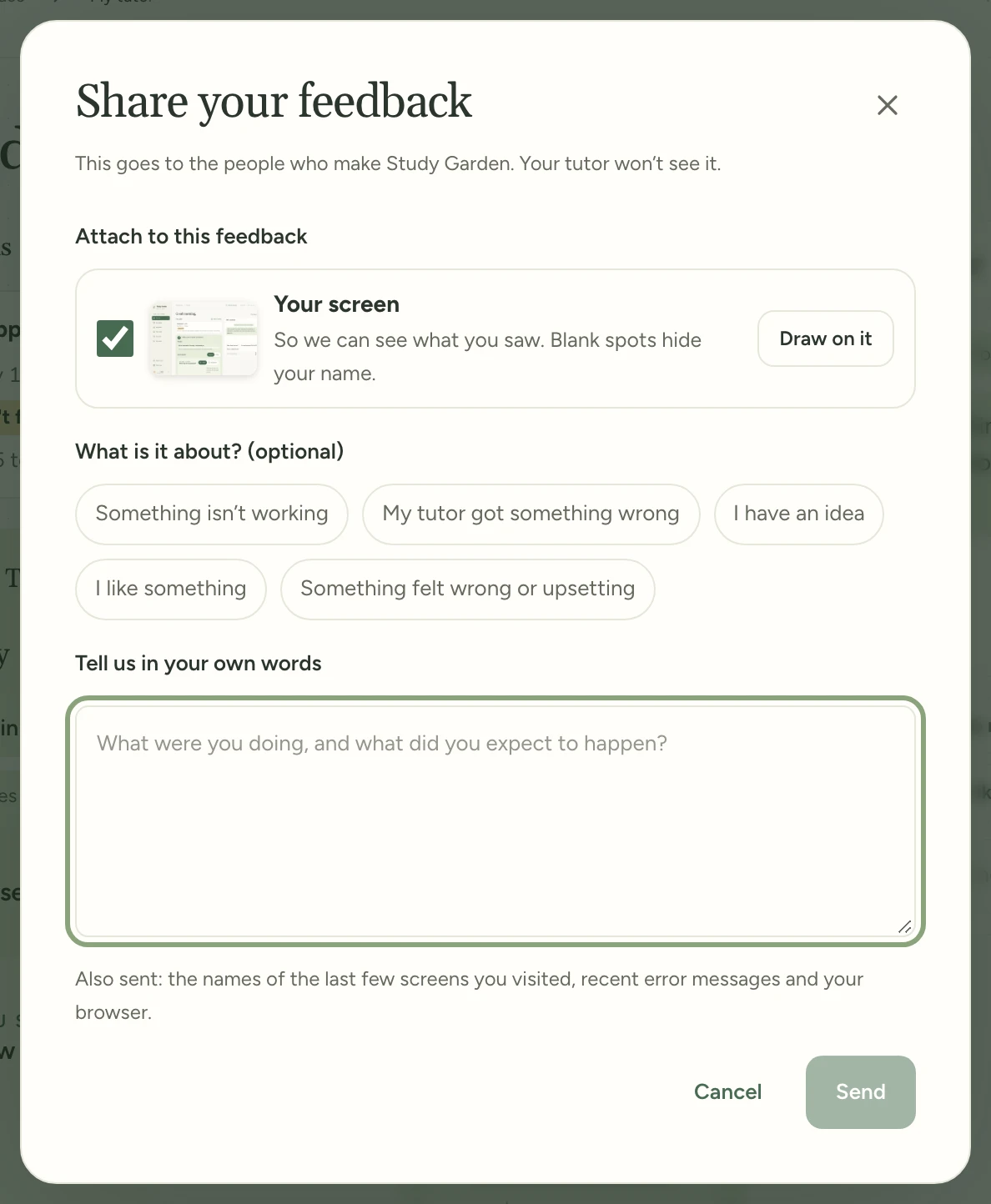
Before you send, you see your screen and, from the tutor, its latest messages. Tap Draw on it to circle something in red with your finger or Apple Pencil, or See them to read the messages. Untick either to leave it out. Names and email addresses are left blank on the screen you send, and large text keeps the size you see.
Find it:Send feedbackDraw on it
How to try it
Tap Send feedback, the round button at the top right of every screen.
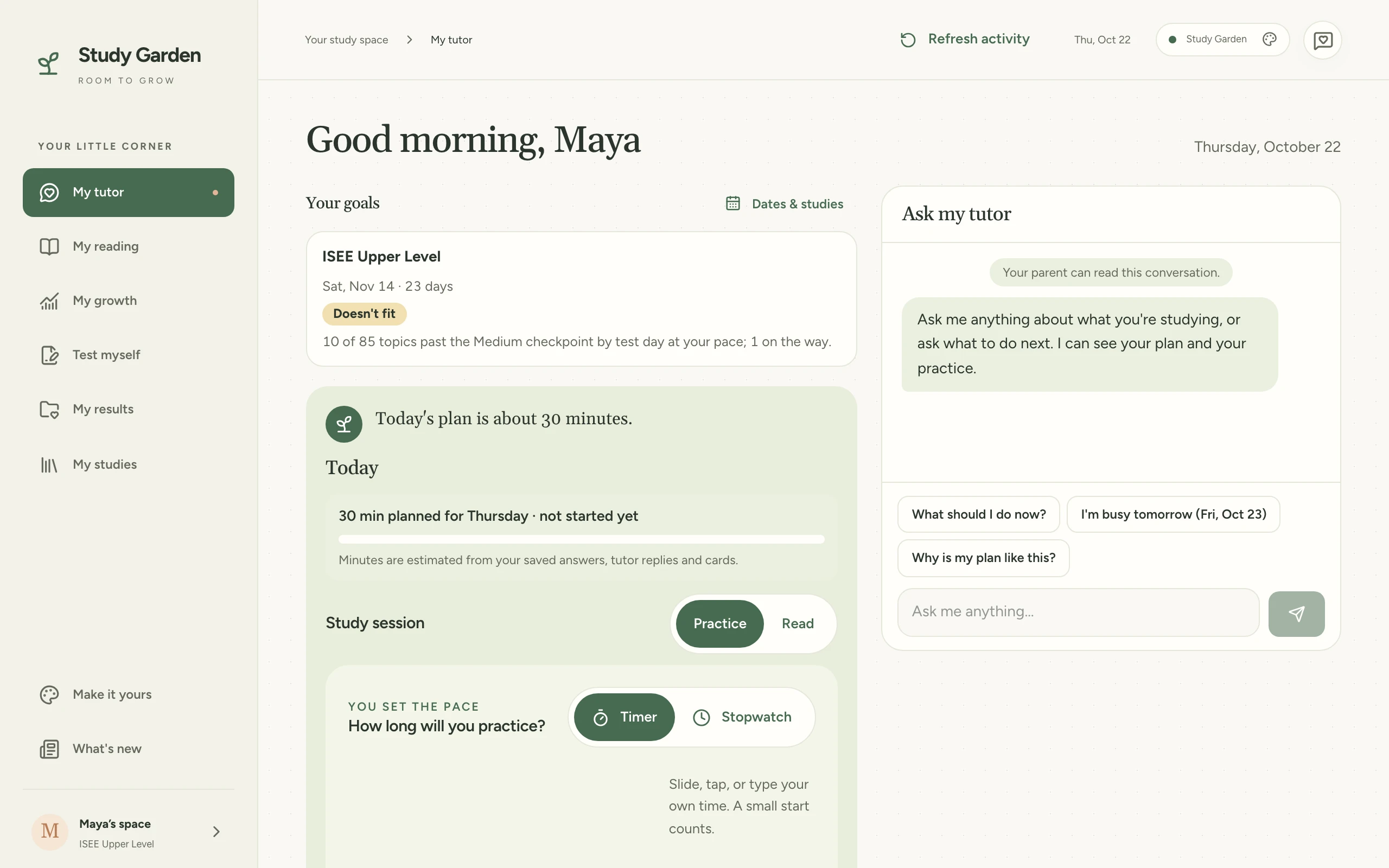
Tap Draw on it, then circle what's wrong with your finger or Apple Pencil.
Say what happened in your own words, then tap Send.
Try it in Study Garden Text this to someone
mystudygarden.com/whats-new/draw-on-your-screen-in-feedback